










ColumbusChange
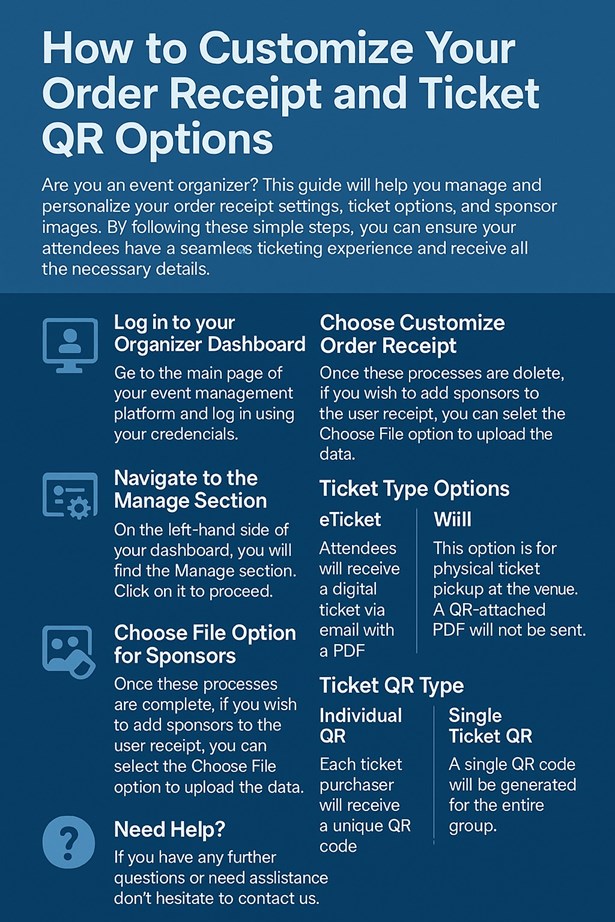
Are you an event organizer? This guide will help you manage and personalize your order receipt settings, ticket options, and sponsor images. By following these simple steps, you can ensure your attendees have a seamless ticketing experience and receive all the necessary details.
To update your
event details and sponsor images for order receipts, follow these steps:
Log in to your Organizer Dashboard:
Go to the main page of your event management platform and log in using your credentials.
Navigate to the Manage Section:
On the left-hand side of your dashboard, you will
find the Manage section. Click on it to proceed.
Choose Customize Order Receipt:
Under the Manage section, click on the Customize
order receipt option. This will take you to a page where you can modify your
receipt settings
Choose File
Option for Sponsors
Once these processes are complete, if you wish to
add sponsors to the user receipt, you can select the Choose File option to
upload the data."
Select the Choose File option and upload the sponsor image you wish to use.
Ideal size: 600x400 pixels.
Maximum size: 2 MB.
Once youve selected the image, click
"Upload." The uploaded sponsor details will be displayed on the
receipts that your users receive.
Ticket Type Options
There are two options available for ticket types:
eTicket:
Attendees will receive a digital ticket via email
with a PDF attachment containing a QR code. They can enter the venue using the
PDF on their phone or by printing a copy.
Will Call:
This option is for physical ticket pickup at the
venue. A QR-attached PDF will not be sent. Instead, attendees will need to pick
up their tickets at the venue.
To select the option:
Click on the ticket type, choose either eTicket or Will Call depending on your event requirements.
Content Section
In the Content Section, you can add any custom details for your attendees. For example, you
might want to include event-specific instructions or information about the
venue and facilities.
To add content:
In the content section, click on the text area provided.
Enter any necessary information, such as
"parking details," "directions," or "available
amenities" that attendees need to know.
Ticket QR Type
There are two options available for the QR codes:
Individual QR:
If you want each ticket purchaser to receive a
unique QR code, choose Individual
QR. For example, if someone buys 10 tickets, they will receive 10 individual
QR codes.
Single Ticket QR:
This option will generate one QR code for the
entire group. If someone purchases 10 tickets, they will receive just one QR
code for all of them.
To select the option:
Choose Individual QR or Single Ticket QR based on your
preference.
Make sure to confirm your selection before
proceeding.
Need Help?
If you have any further questions or need
assistance, dont hesitate to contact us. Our support team is here to help with
any inquiries or additional guidance you may need.


